
Custom Domain: Configure Email Delivery
If your Portknox cloud is accessible under your own domain, you can use your domain’s email address for sending system emails (e.g. password resets, notifications, calendar invitations). This guide shows you which settings are required.
Prerequisite: Your custom domain is already configured in the Portknox App and active.
Step 1: DNS Settings – Update SPF Record
To allow the Portknox servers to send emails on behalf of your domain, you need to update the SPF record in your domain’s DNS settings.
What is SPF? SPF (Sender Policy Framework) is a DNS TXT record that specifies which servers are authorized to send emails for your domain. Without a valid SPF record, emails from our servers may be flagged as spam or rejected outright (bounce-backs).
How to do it:
- Log in to your domain provider’s management panel (e.g. netcup, INWX, Hetzner, GoDaddy, Namecheap, etc.)
- Navigate to the DNS settings
- Find your existing SPF record (TXT record for your main domain)
- Add the Portknox include: _spf.portknox.info
Example
Before (your existing SPF record):
v=spf1 include:_spf.google.com -all
After (with Portknox include):
v=spf1 include:_spf.portknox.info include:_spf.google.com -all
If there is no SPF record yet, create a new TXT record:
- Type: TXT
- Name: @ (or main domain)
- Value: v=spf1 include:_spf.portknox.info -all
Step 2: Switch Mail Delivery to “sendmail” in Nextcloud
After the DNS record is in place, switch the mail delivery method in your Portknox cloud’s mail settings to sendmail.
How to get there:
- Log in as Admin in your Portknox cloud
- Click on your avatar (top right) → Settings
- Go to Basic settings → Email server
- Set Send mode to sendmail
- Click Save
The screenshot below shows the correct mail settings with send mode set to “sendmail”:
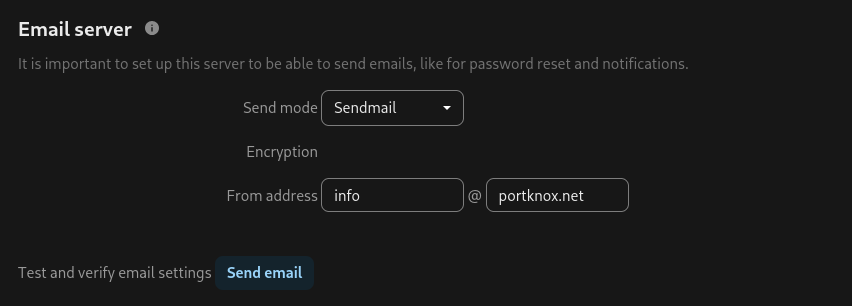
Emails should now be sent normally and there should be no more bounce-backs. You can test delivery by sending a test email (e.g. a calendar invitation to yourself or an external address).
Common Issues
- Emails bounce back – The SPF record has not been updated yet or DNS propagation is still in progress. DNS changes can take up to 48 hours, but usually it takes just a few minutes.
- Emails end up in spam – Check that your SPF record is correct and consider adding a DMARC record as well. You can verify your DNS records at mxtoolbox.com
- Emails are not sent at all – Make sure the send mode is set to sendmail (not SMTP without proper configuration).
Need help? Our support team is happy to assist. Just reach out via the contact form in your Portknox cloud.